Feb 3, 2024 · Originally published on Medium
How to Deploy a Flask App to DigitalOcean App Platform with Continuous Integration
Step-by-step easy guide to deploying Flask app within minutes.
Hello, everyone! I’ve been developing a Flask app for some time, but deploying and utilizing it posed quite a challenge. However, the Digital Ocean App Platform significantly simplifies the process, enabling you to launch your Python apps in just a few minutes
Prerequisites
- A GitHub Account
- A Flask Python App running on your local machine.
Now, let’s dive into the tutorial 🐎.
Step 1: Setting Up Your Gunicorn Configuration
Gunicorn is a Python WSGI HTTP server that many developers use to deploy their Python applications. This WSGI (Web Server Gateway Interface) is necessary because traditional web servers do not understand how to run Python applications. For your purposes, a WSGI allows you to deploy your Python applications consistently. You can also configure multiple threads to serve your Python application, should you need them. In this example, you will make your application accessible on port 8080, the standard App Platform port. You will also configure two worker-threads to serve your application.
Install Gunicorn using the local instance of pip if you are using the virtual environment
pip install gunicornAfter installing, Create a file named gunicorn_config.py:
nano gunicorn_config.pyNow add the following code to the file:
bind = "0.0.0.0:8080"
workers = 2
This is all you need to do to have your app run on App Platform using Gunicorn. Next, you’ll commit your code to GitHub and then deploy it.
Step 2: Creating a requirements.txt File and Pushing to GitHub
Ensure your project includes a requirements.txt file that lists all the packages your project depends on. This file is crucial for reproducing your project environment on the cloud.
If you’re working within a virtual environment (highly recommended for Python projects), you can easily generate this file by executing the following command. This command uses pip to compile a list of installed packages and their versions then redirects the output to a requirements.txt file:
pip freeze > requirements.txtBy doing so, you capture all the necessary dependencies for your Flask app, streamlining the deployment process.
Your project should contain these two files: requirements.txt and gunicorn_config.py.
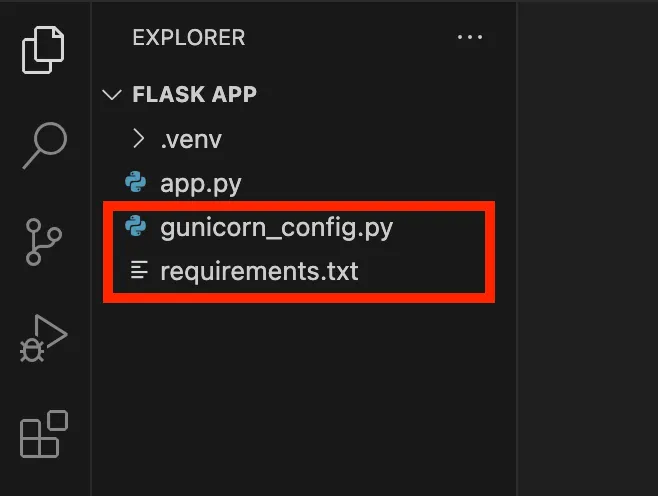
Pushing to GitHub:
With your requirements.txt file ready, the next step is to push your project to a GitHub repository.
Congratulations! Your project is now on GitHub You’re ready to move on to deployment.
Step 3: Creating a DigitalOcean App
Here is the deal guy use myreferral linkto sign up to Digital Ocean if you register at Digital Ocean with it, you will get $200 in credit over 60 days.and I will get $25 when you spend your first $25 after credits. So, why miss out on $200? Definitely consider using this referral link
After completing the signup, you will be presented with this screen that shows no projects.
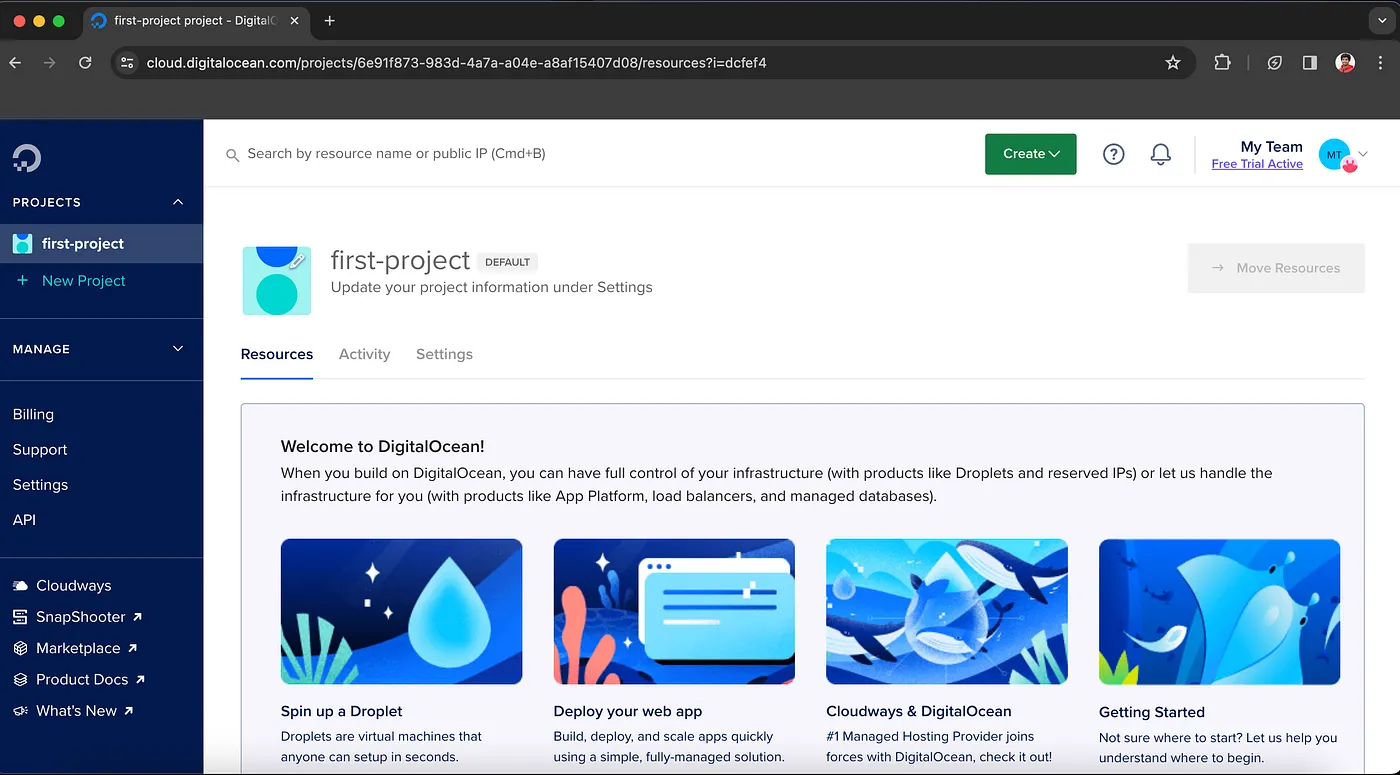
Now, we will create a new app by clicking the ‘Create’ button located at the top of the page.
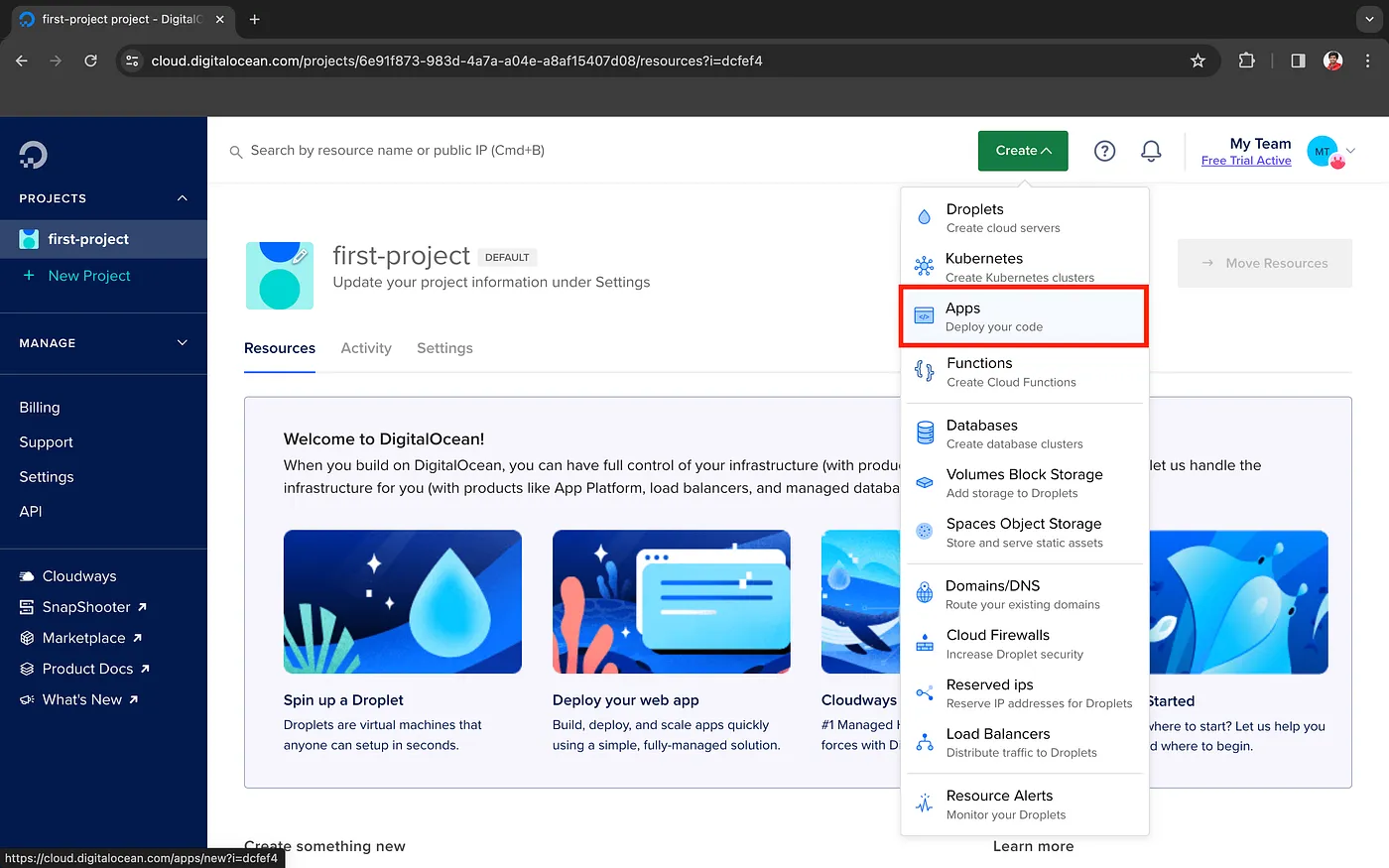
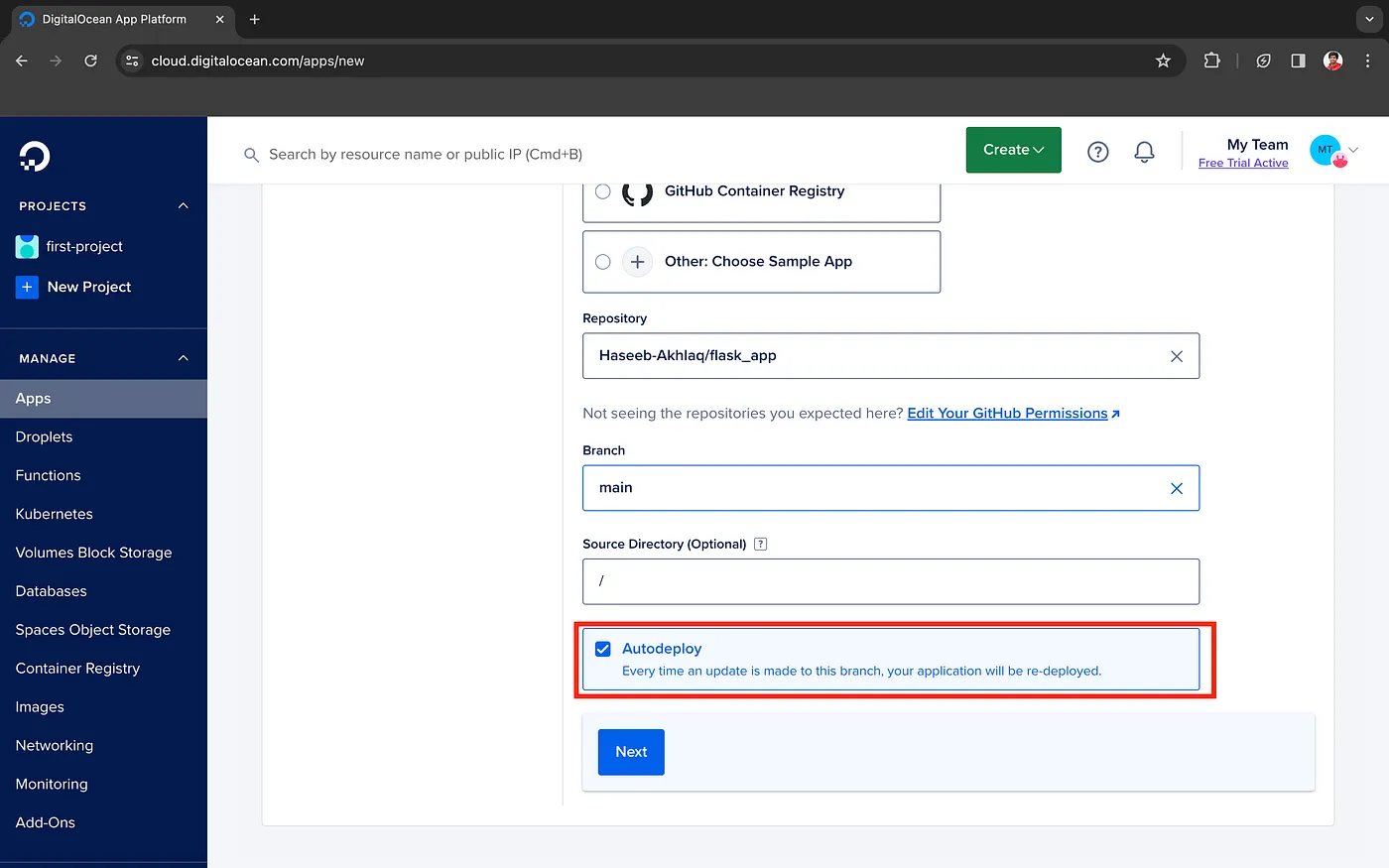
Next, choose ‘GitHub’ as the source for your code and select your repository.
Ensure that you select the correct branch, and also make sure to check the ‘Autodeploy’ checkbox. This will enable automatic redeployment whenever you push new changes.
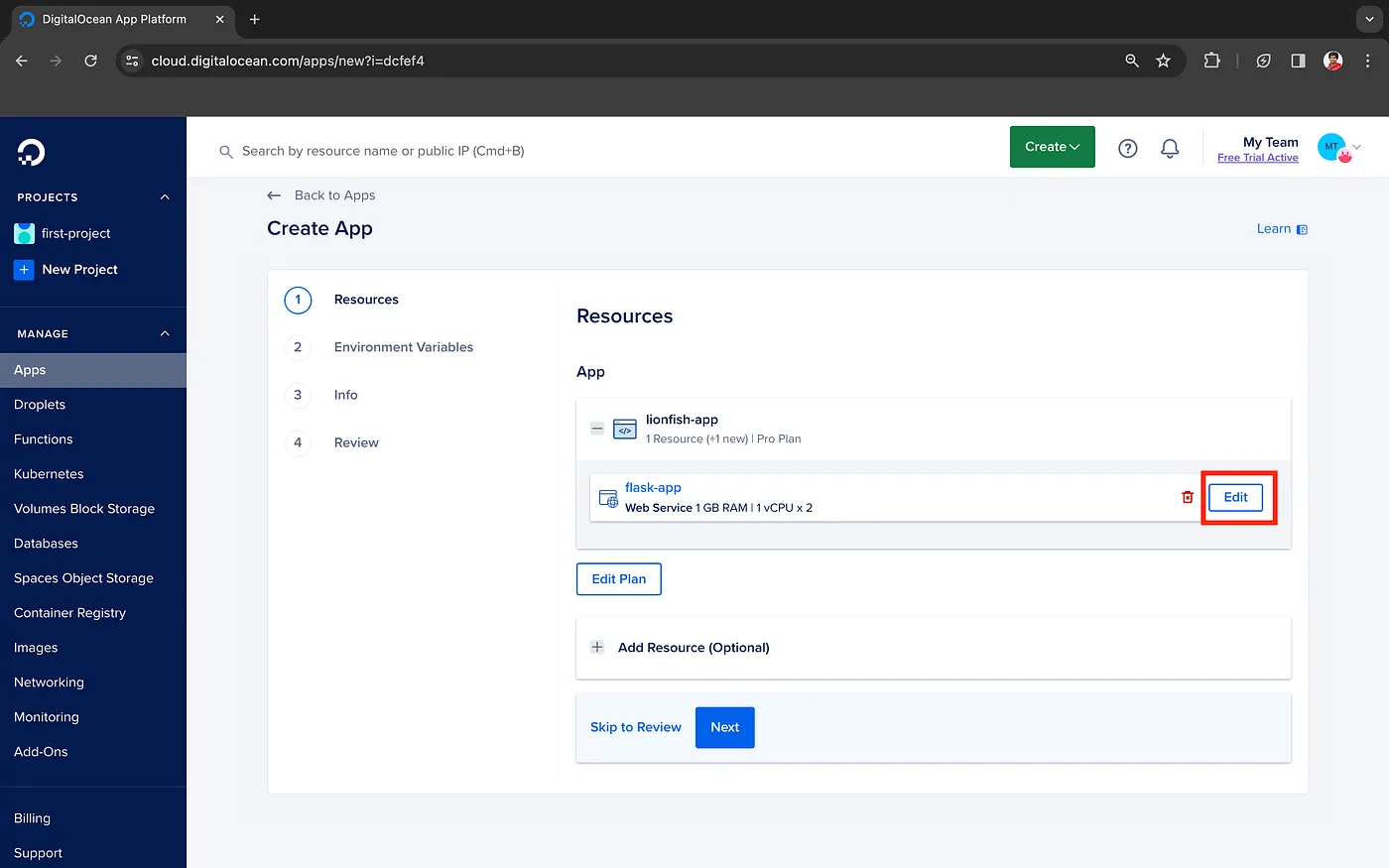
Now, you will see the screen below, we need to update a setting in the Flask app. Click on the ‘Edit’ button
Click the Edit link next to the Run commandto complete the build command. Your completed build command needs to reference your project’s WSGI file. In this example, this is at app:flask_app.
Replace the existing command with the following:
gunicorn --worker-tmp-dir /dev/shm app:flask_app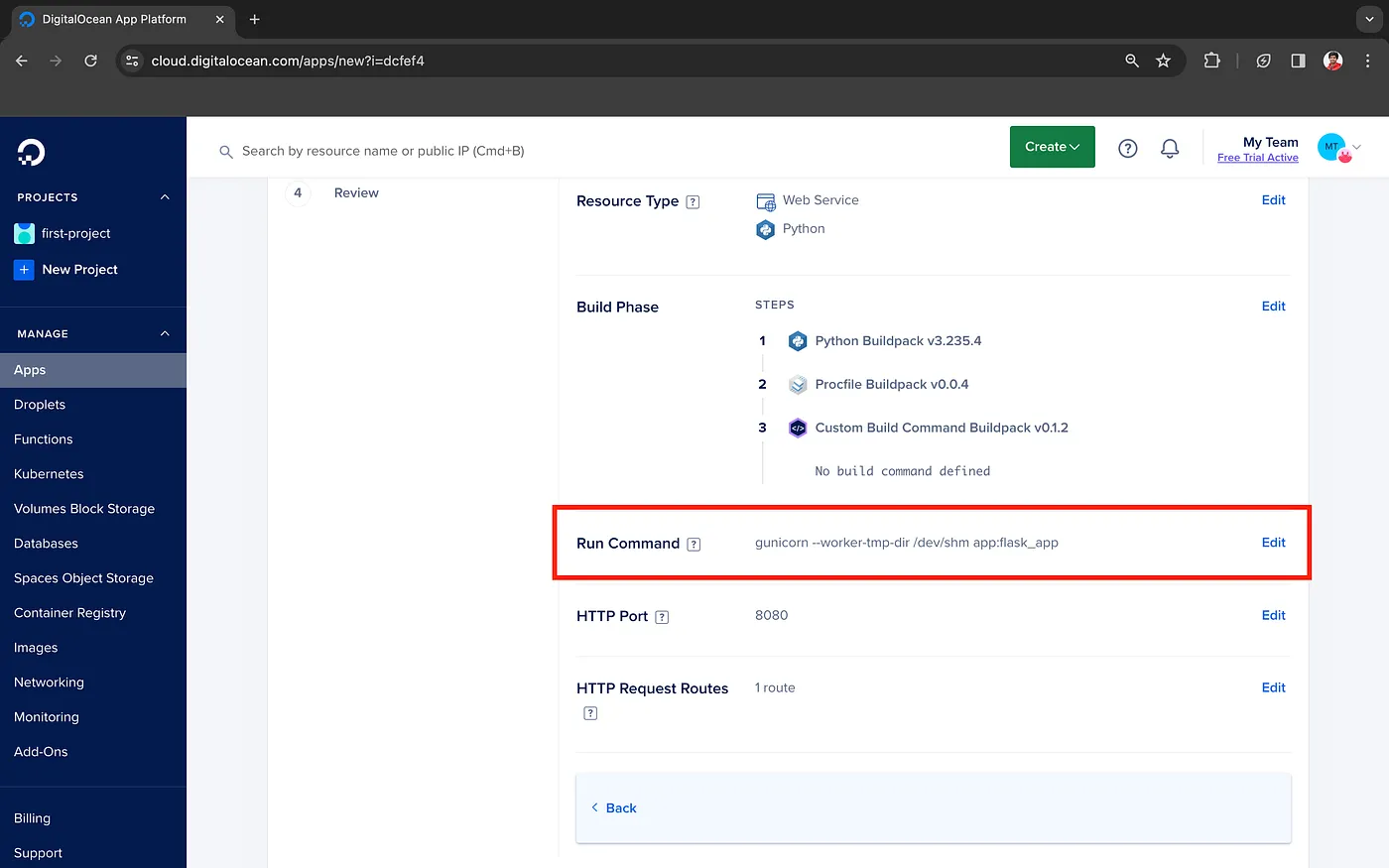
From where did I get this app:flask_app ?
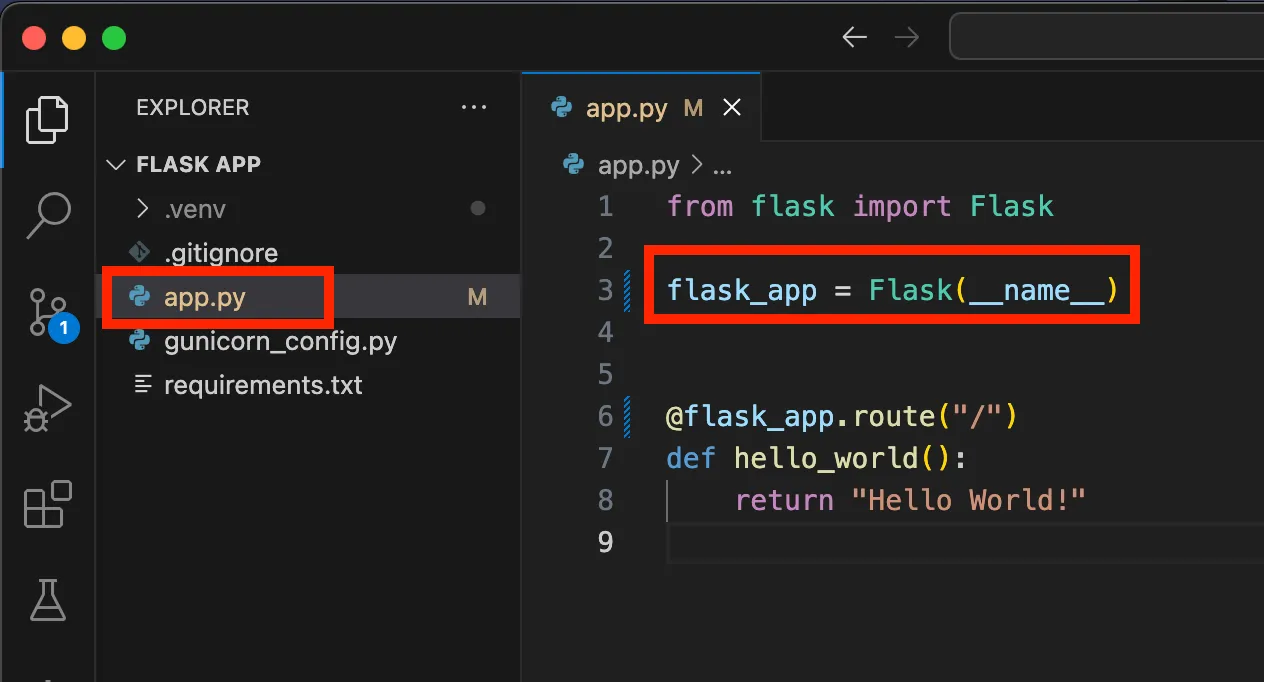
As shown in my project’s app.py file, this is where my flask_app is initiated. You can adjust this according to your own directory structure.
You also have the option to modify the port setting based on the specific port you are using.
Once we’ve configured our app, proceed to the next step to add any additional settings. These settings are straightforward to include. After that, review your resources, and finally, launch the app.
Wait for the deployment process to complete. Once it’s finished, go ahead and launch the app.
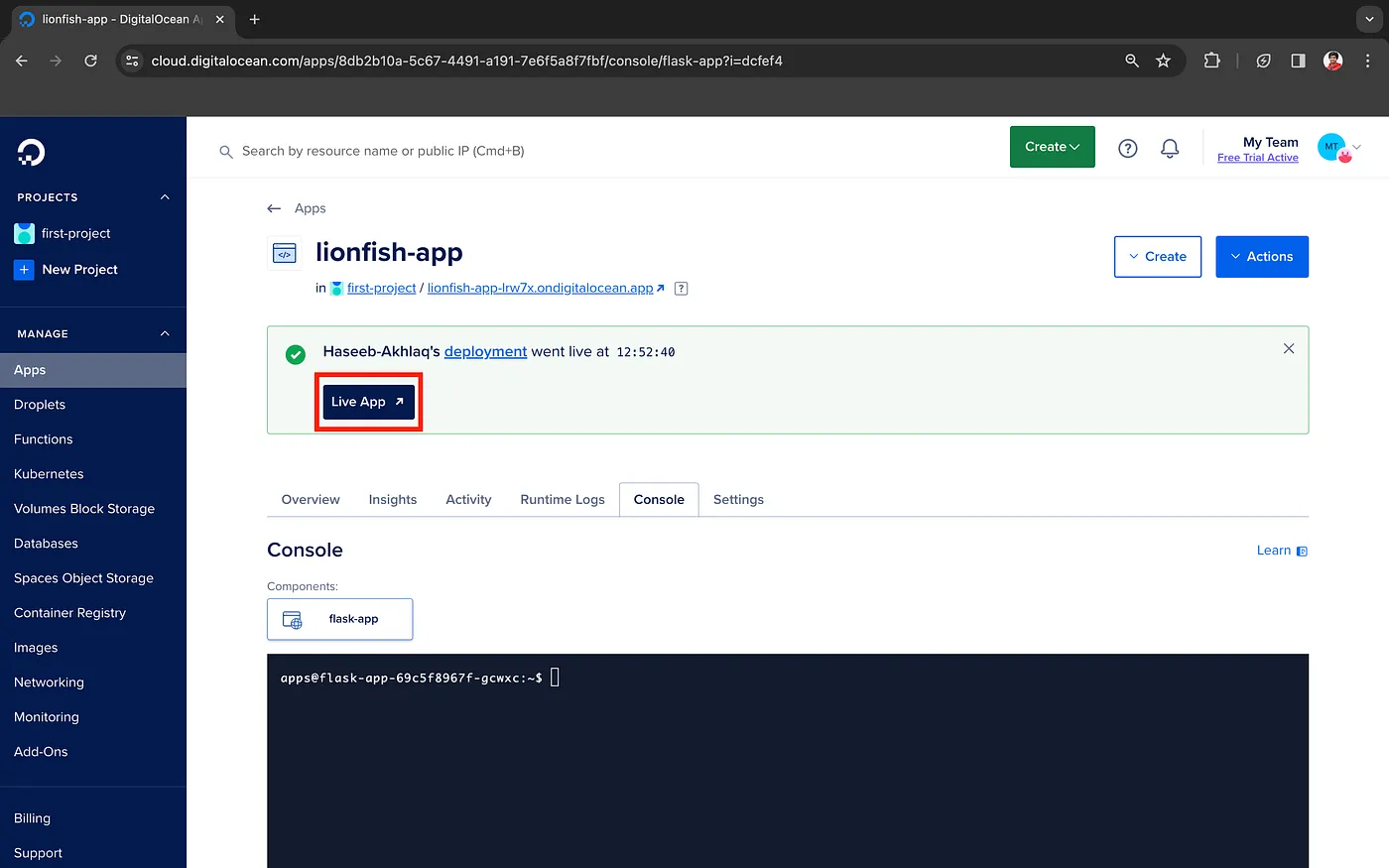
Your app is up and running!
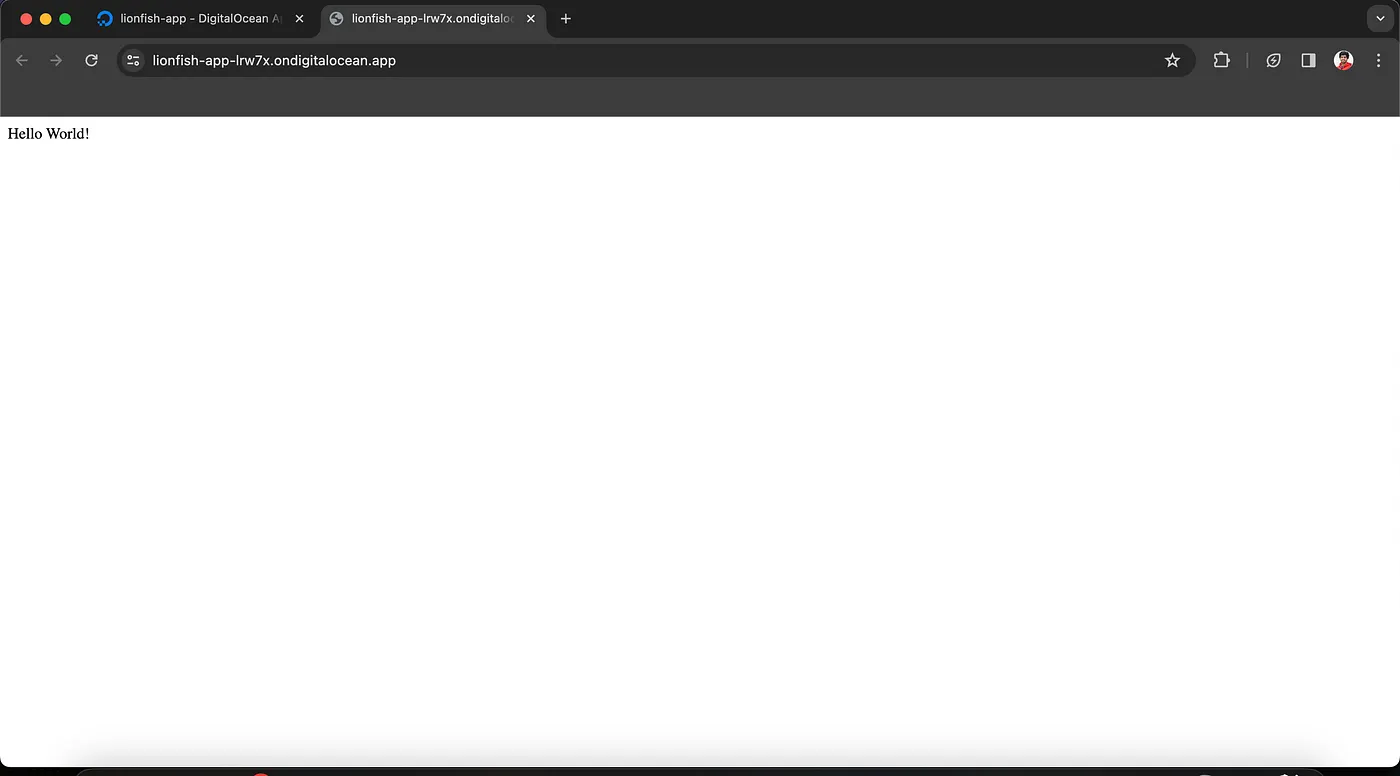
Bravo 🎊.
Your app is live and successfully deployed on Digital Ocean. You can now make changes to your project and push them; they will automatically be reflected in the production environment.
Cheers!