Oct 27, 2023 · Originally published on Medium
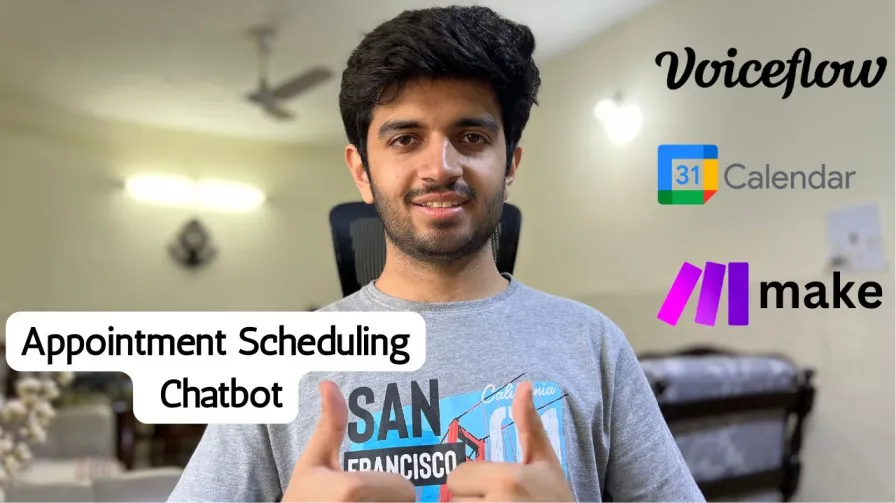
Appointment Setting AI Chatbot Using Voiceflow and Google Calendar
Detailed guidance on how to use Voiceflow and Google Calendar to build a no-code/low-code AI chatbot that can ease your appointment scheduling task.
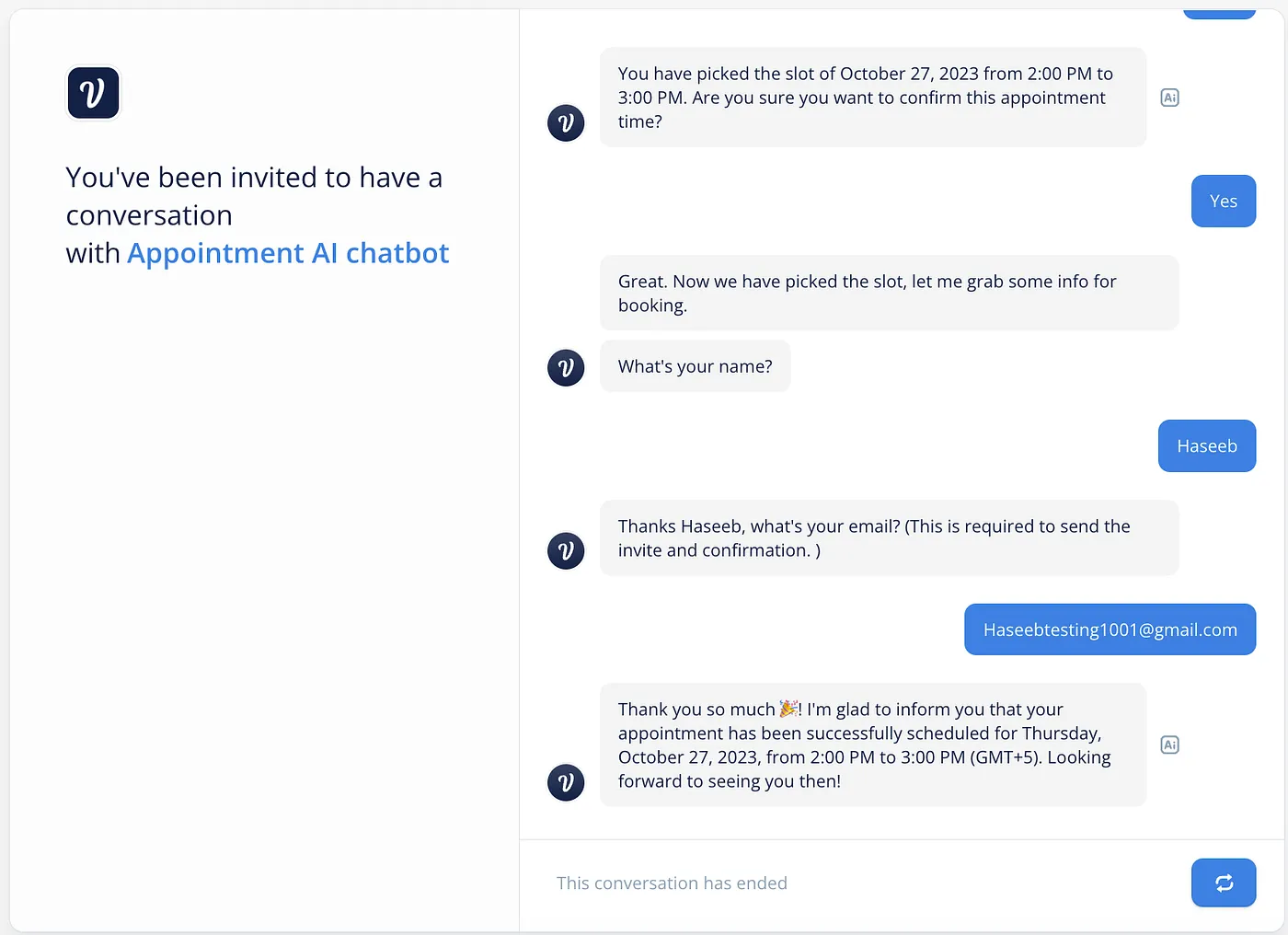 Demo of Chatbot
Tools Used
- Voiceflow
- Make.com
- Google Calendar
Quick Intro to Tools
Voiceflow
Voiceflow is a conversational AI platform that allows you to create voice assistants and chatbots without coding. It comes with integrated LLM’s, which we can use to make the chatbot smart. You can connect your chatbot to many places like WhatsApp, Teams, or a website chat. It can talk in many languages, so it’s suitable for users worldwide.
Make
Make.com is a tool that lets you create things without needing to know how to code. It’s like a visual puzzle where you can put pieces together to make tasks, apps, or even big business jobs. You can do small tasks or big ones. It’s great because it works with many popular apps, so you can automate a lot of things easily. Make is often considered an alternative to Zapier.
Google Calendar
Google Calendar is a powerful, free service developed by Google. you can use to organize your schedule and coordinate events with others. It has many useful features, including the ability to share calendars with others and easily switch what is currently being displayed.
Enough talking. Let’s build stuff 🏎
Let’s Build It
Quick overview of the chatbot: This chatbot helps set up appointments. Users can choose a date and then pick an available hour between 10 a.m. and 6 p.m. After they pick a time, they give their name and email. The chatbot then puts the appointment in their Google calendar.
Here is the step-by-step guide to setup this bot ->
1. Set Up the Bot on Voiceflow
Make an account on voiceflow and download the template I made for this Chatbot.
Google Appointment Setting Bot - Google Drive
Import the template into voiceflow
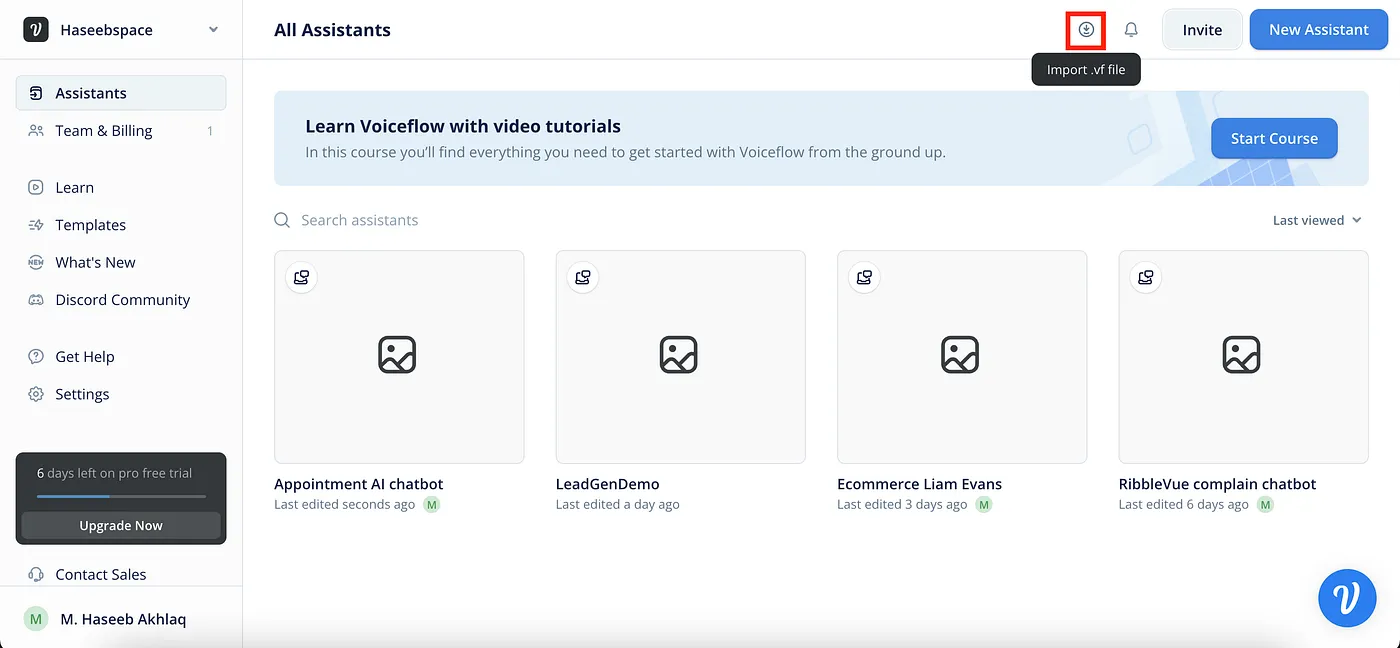 Voiceflow Dashboard page
Once you have imported the template, you will get a new assistant to your voiceflow dashboard page. Click on the assistant, and you will be redirected to the designer page.
Click on the Run button to have the Demo of the bot.
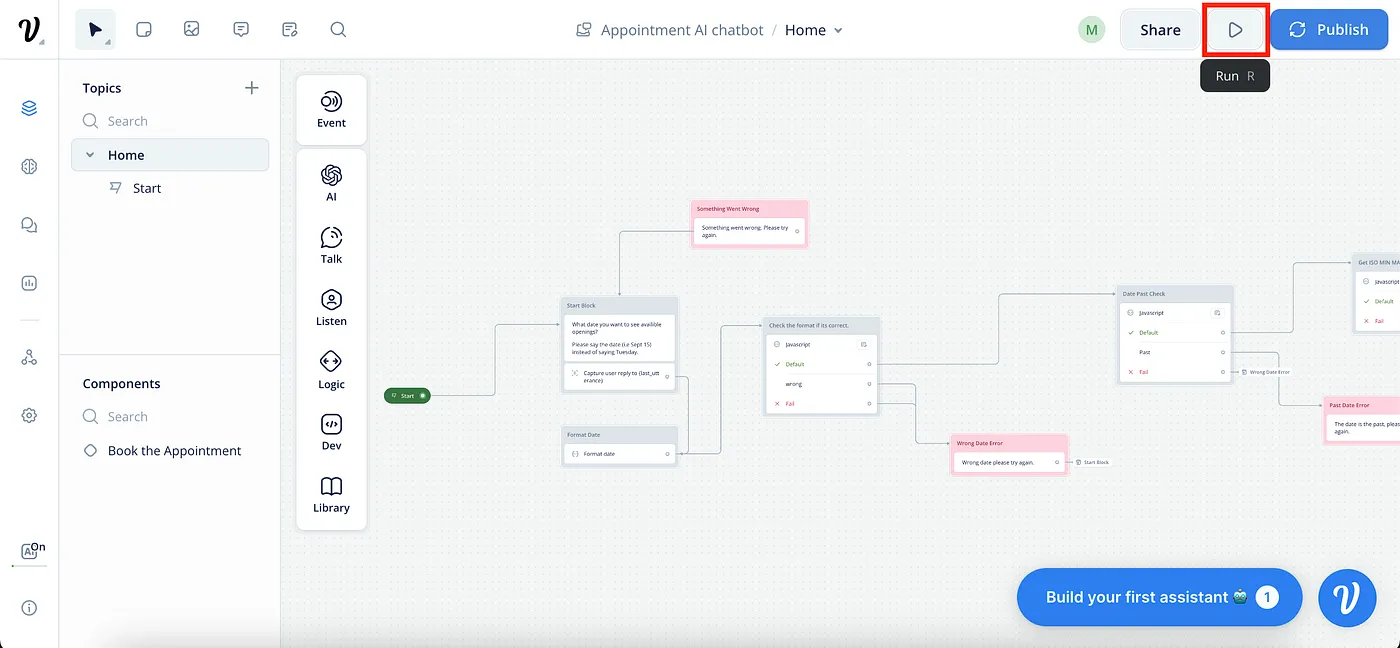
But for the Chatbot to work, we have to integrate Google Calendar and Make.com.
So, let’s do that first.
2. Set Up the Google Calendar API
We will need Google Calendar API to fetch the busy schedule of the calendar so we can remove that time from available slots.
First, Let’s enable Google Calender API:
- Go to Google developers console.
- Create a project with any name.
- Go to the API & Services Section.
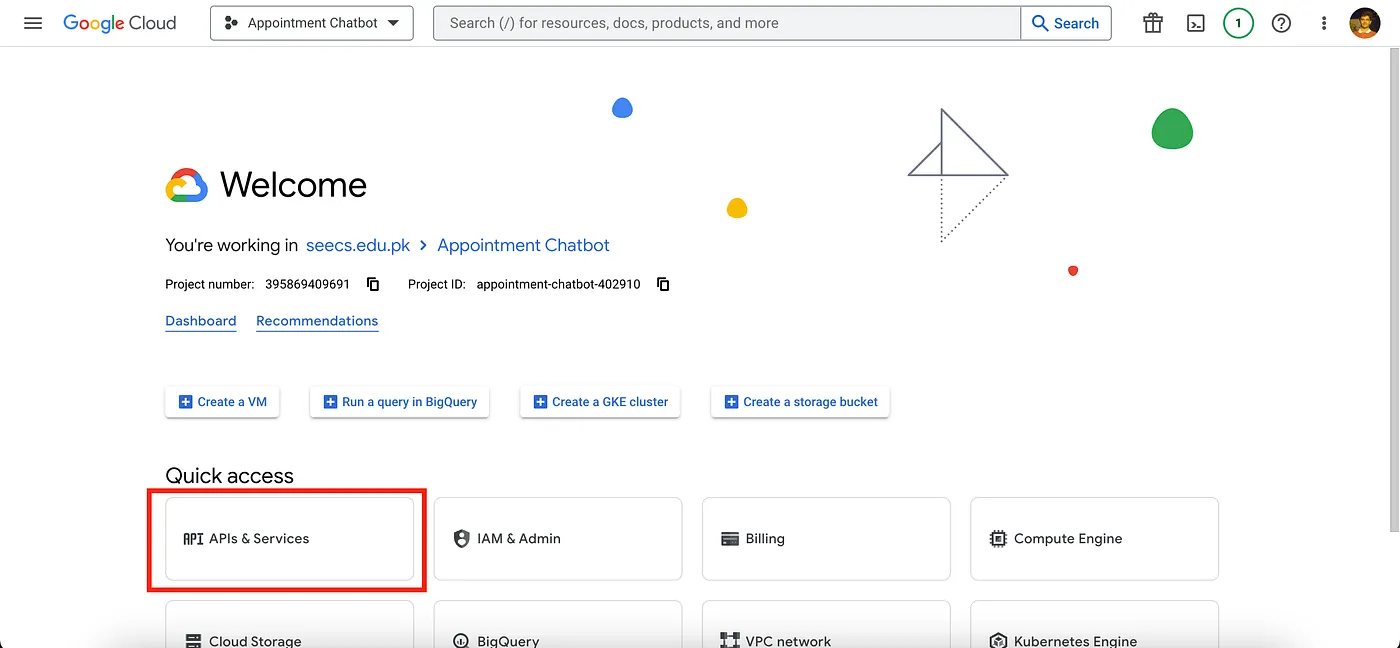
-
Search for Google Calendar API.
-
Enable the API.
-
In Credentials in the API & Services section, create a new API key.
Now that the API key is ready, we have to manage our Calendar access. Go to Google Calendar using the same account with which you activated the key.
Open the settings of the Calendar.
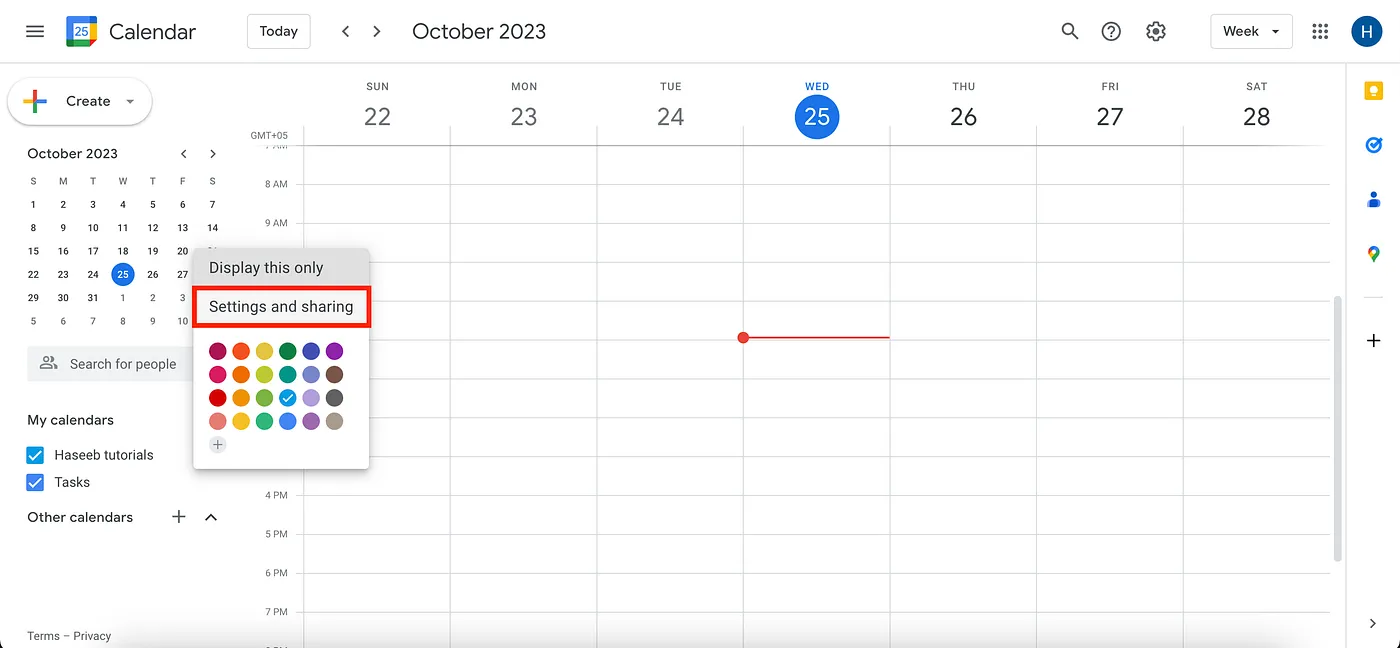
Make your calendar available to the public and select See only free/busy.
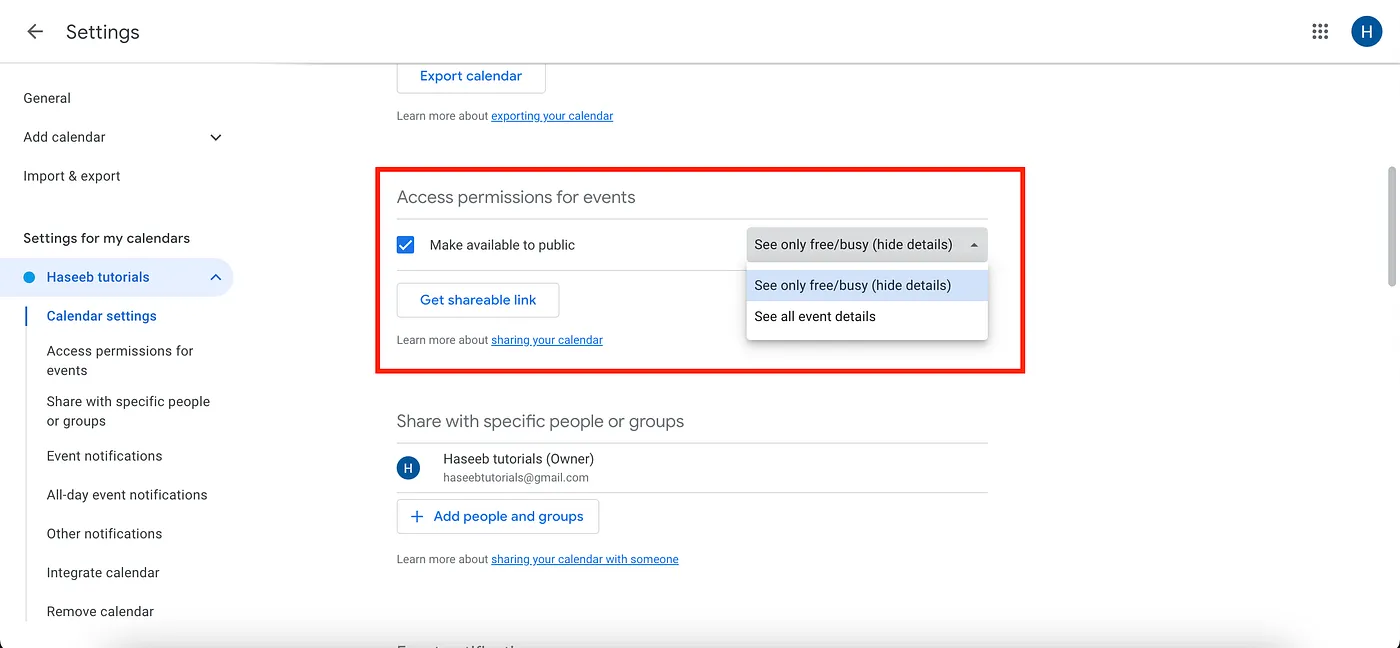
Perfect!!
The Google Calendar is now set up for API access. We’ll utilize the Google Calendar’s free/busy API to retrieve the busy schedule.
https://www.googleapis.com/calendar/v3/freeBusyNow, let’s add this API to Voiceflow.
Navigate to the chatbot’s designer page on Voiceflow. Locate and select the Google Calendar API block. Adjust the parameters to match your account details. Ensure you input:
- Your API key
- Calendar ID (found in Calendar Settings, typically email address for the main calendar )
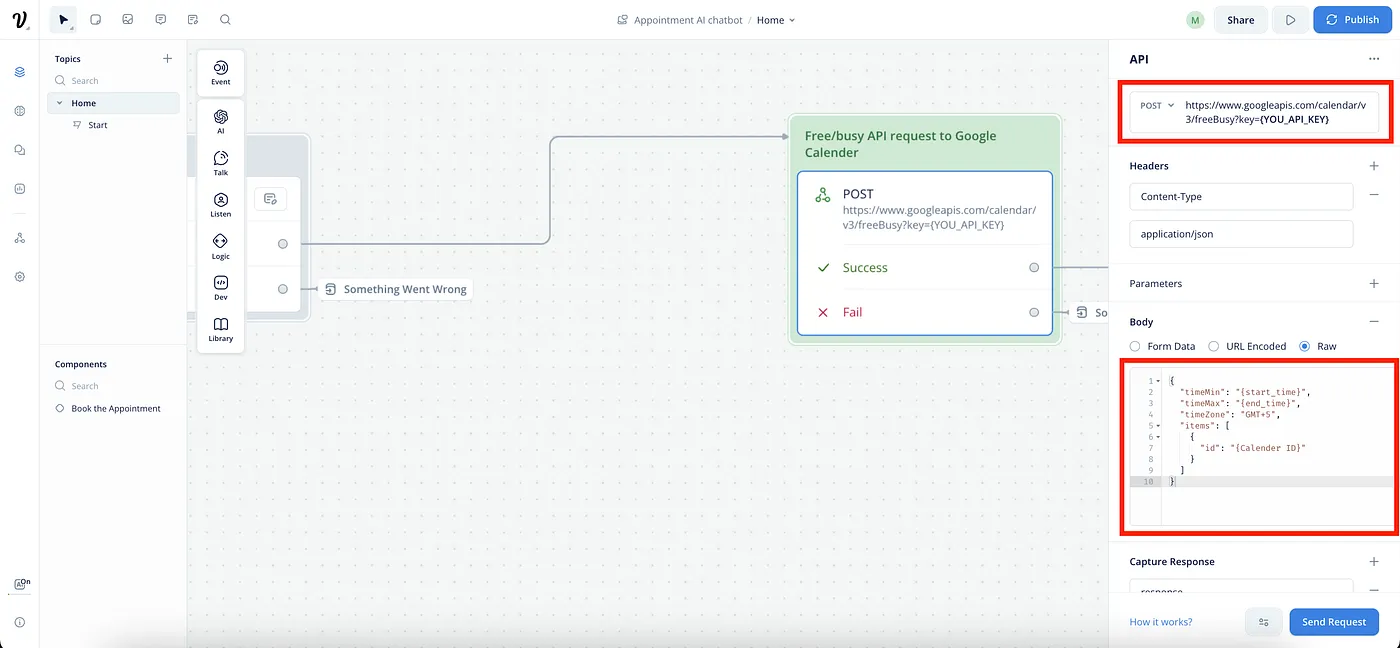
So now Google Calender API is set 🤙
3. Create a New Scenario on Make.com
To confirm the appointment for the time slot the user selects, we will utilize Make.com to create the event on Google Calendar. Here’s a step-by-step guide:
Flow Overview:
- Webhooks: Sending the user details.
- Google Calendar: Create Event.
Instructions:
- Navigate to Make.com
- Sign in to your Make.com account
- Create a New Scenario
- Set Up Webhook:
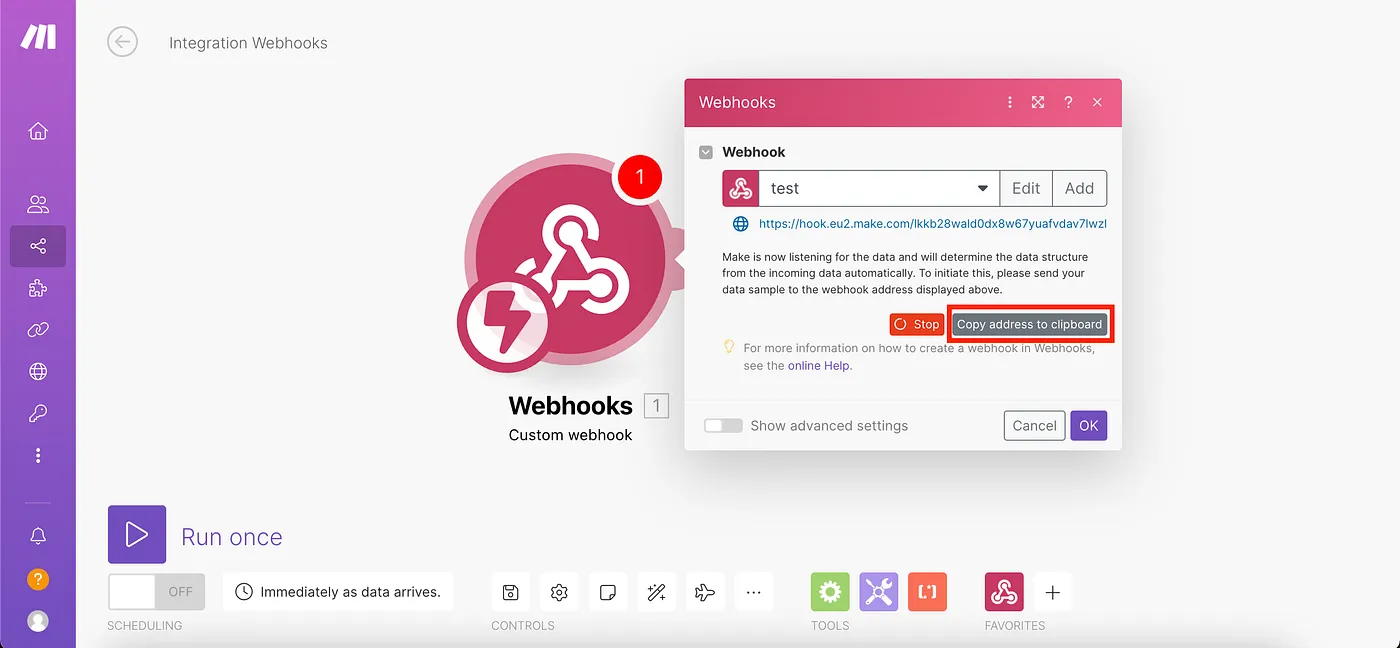
- Choose “Webhook” as the first module.
- Opt for “Custom Webhook” and proceed to add a new hook.
- Upon creation, copy the hook address. This will be needed in Voiceflow.
Navigate to the chatbot designer page on Voiceflow. Once there, find and select the Webhook API block. Input the hook URL you obtained from Make.com into the API section. After entering the URL, send a test request to verify the structure of the webhook as set up in Make.com.
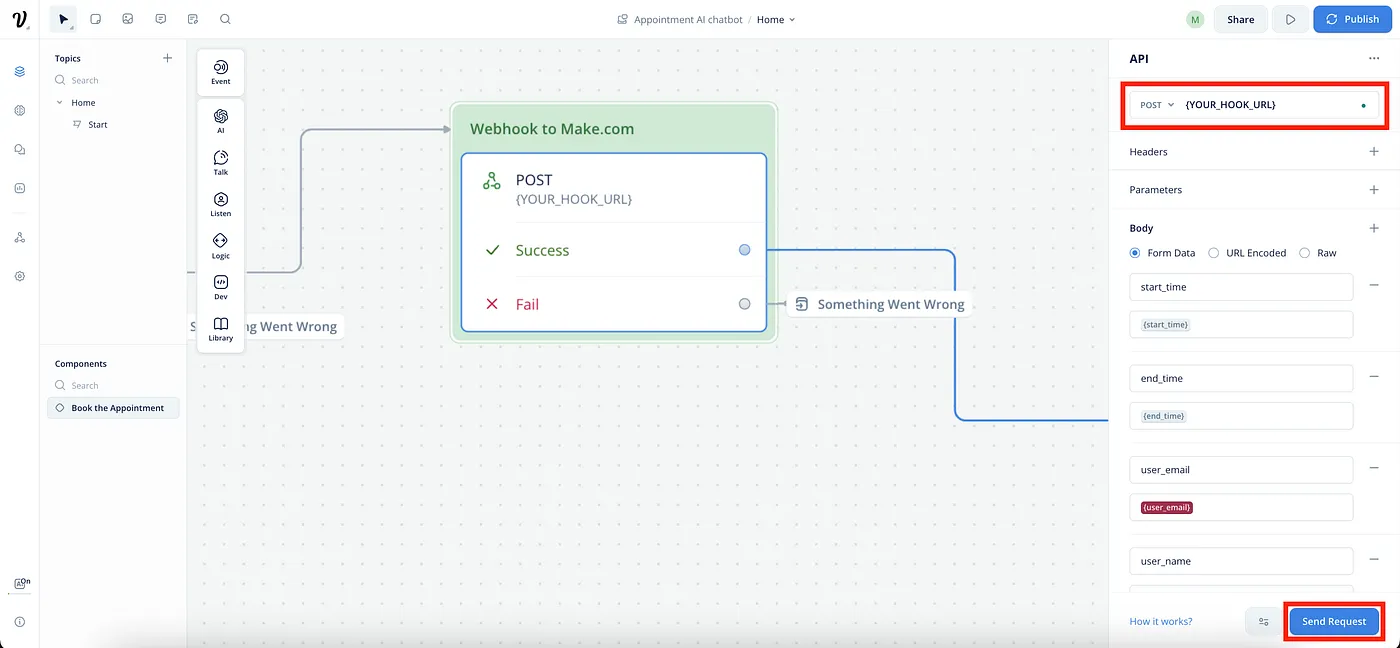
Now, after sending the request, the structure will be successfully determined.
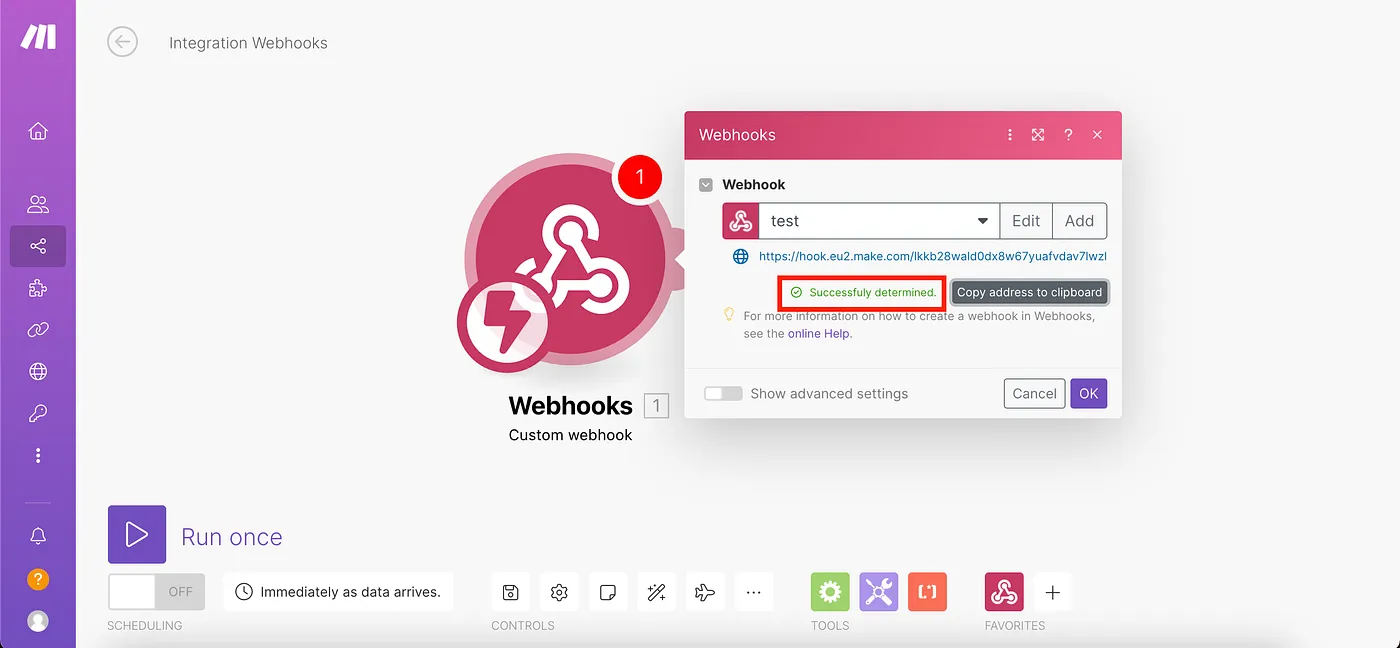
The webhook part is DONE.
Now, proceed to add another module for Google Calendar. Choose the ‘Create an Event’ module and input the necessary details obtained from the webhook. Make sure to enable the module’s advanced settings to include attendee details.
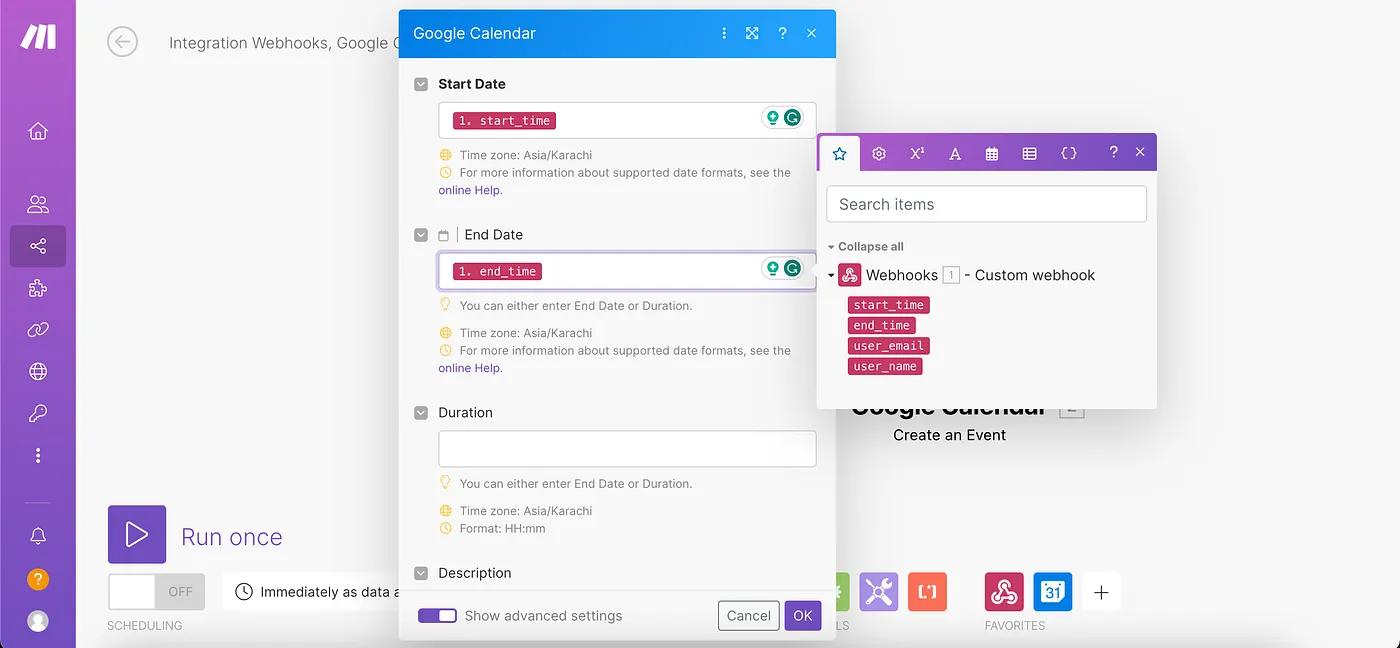
Ensure that you initiate the SCHEDULING of the scenario to activate its functionality.
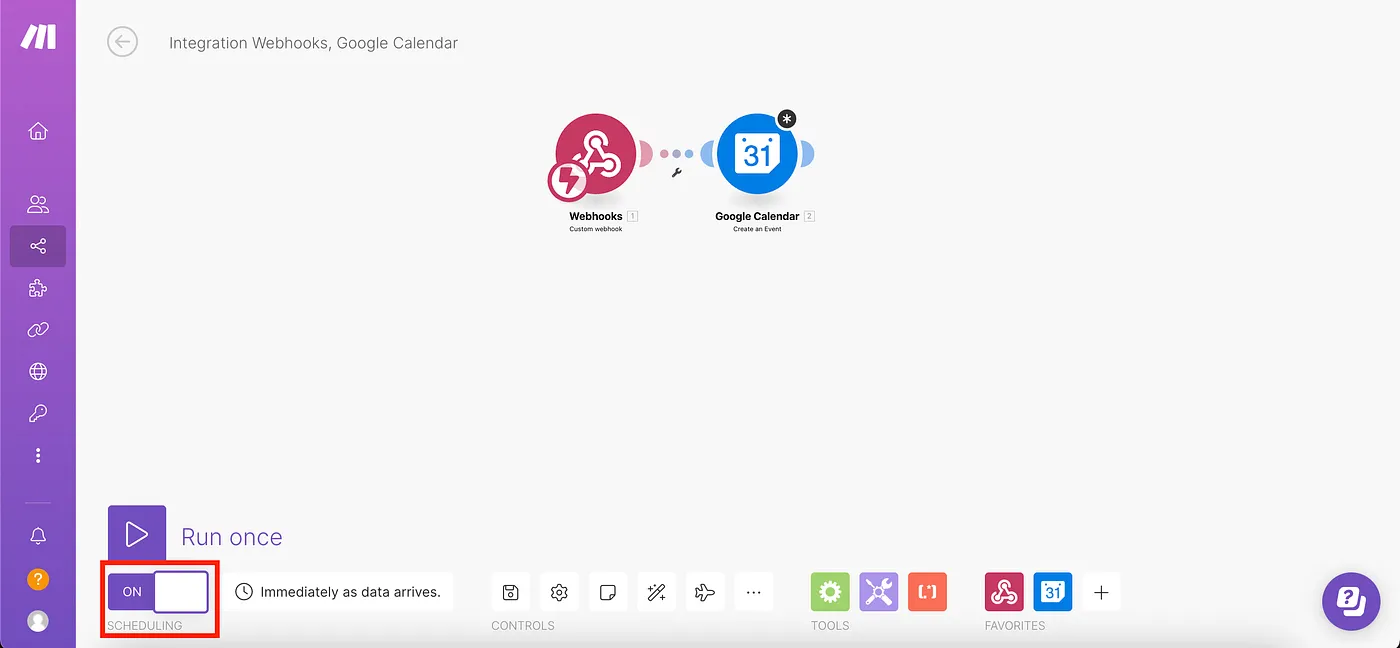
Done 🎊 We have successfully created a new scenario on Make.com that retrieves data from the webhook and creates an event on Google Calendar using that information.
Bravo 🙌
Your Voiceflow chatbot is ready and fully equipped to be your appointment assistant.
For those seeking comprehensive, in-depth details about the chatbot in a video format, I invite you to watch this tutorial I’ve created.
Thank you so much for following this blog.
Peace out 😄